

SUPPORT
SoundUplink Support: help for the Bose SoundTouch app
SoundUplink controls Bose SoundTouch speakers locally over Wi-Fi, without the Bose cloud and without an account. Below you will find answers on setup, presets, multiroom, alarms and custom stations. If something does not work, write to us using the form.
A look inside the app
Frequently asked questions
1. The app does not find my speaker. What can I do?
First check that your phone and the speaker are on the same Wi-Fi network. Guest networks often keep devices apart. On iPhone, SoundUplink needs access to the local network: iOS Settings › Privacy & Security › Local Network. If the search still does not find the speaker, enter its IP address in Settings, in the App section.
2. Where do I find my speaker's IP address?
In your router's device list. The address is four numbers from 0 to 255 separated by dots, for example 192.168.1.40.
3. How do I set up a speaker that was reset?
On Android, go to Settings › Speaker › Connect new speaker. The app briefly connects your phone to the speaker's setup Wi-Fi and hands it your Wi-Fi credentials. On iPhone this setup comes later; until then, set the speaker up with the Bose SoundTouch app, which according to Bose still works.
4. What do I need SixBack for?
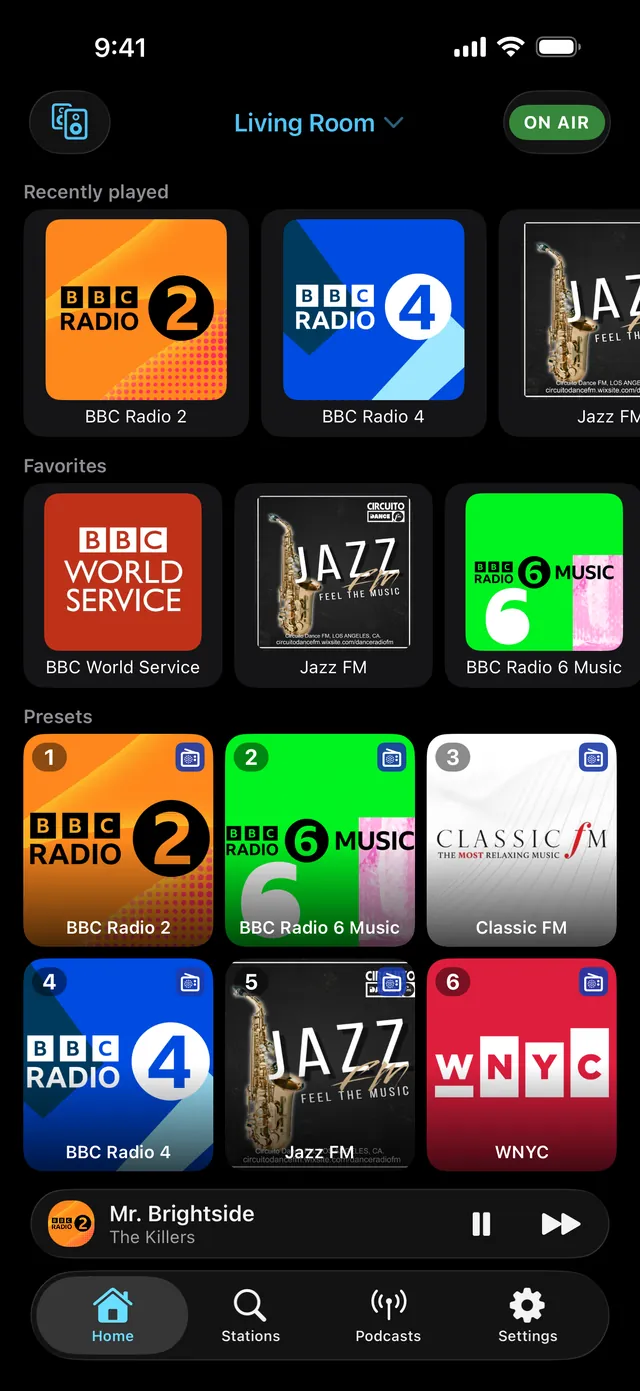
The six preset buttons on the speaker used to fetch their stations from the Bose cloud. SixBack is a small server on an ESP32 on your network that takes over this job. Turn on “Use SixBack” in Settings, in the App section, and SoundUplink writes your presets to it so the buttons play again. For the hardware buttons, SixBack needs an ESP32 with PSRAM, such as an ESP32-S3. Without SixBack, presets exist in the app only.
5. How do I group several speakers?
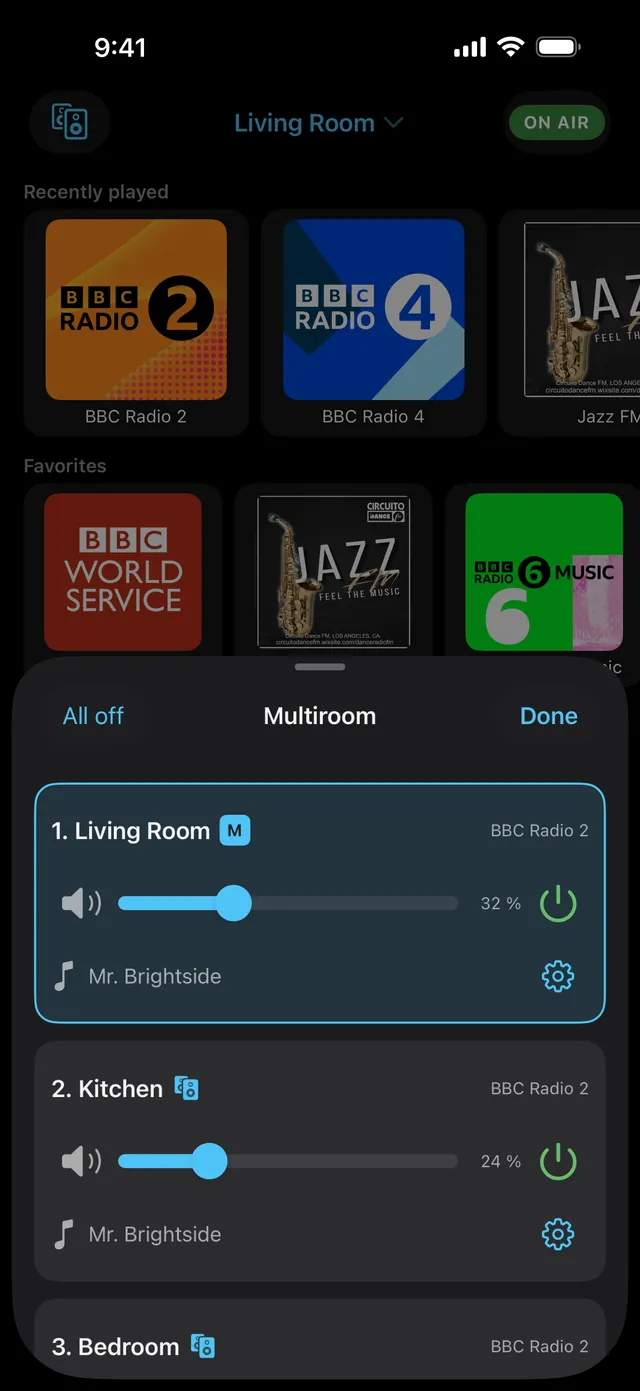
Open Multiroom, pick the speakers that should play along and tap “Done”. Each speaker has its own slider, and the shared volume moves them all together.
6. How does the radio alarm work?
Under Alarms, set a time, the weekdays, a station and a speaker. On Android, SoundUplink switches the speaker on at wake-up time and starts the station; the app needs the “Alarms & reminders” permission, and the phone has to be on Wi-Fi. On iPhone, the alarm rings on the iPhone and “Radio on” starts the station on the speaker. Without tapping at all, use a Shortcuts automation at wake-up time with the action “Start alarm radio”.
7. Can I add my own station with a stream address?
Yes. The safest choice is the direct stream address, a link to the audio itself. The speaker plays MP3 and AAC, but not OPUS. You may enter https addresses; the app passes them to the speaker as http. If a link ends in .m3u or .pls, it is a playlist file, so look for the direct address instead.
8. Why do I see ads, and how do I change my choice?
SoundUplink is free and funded by ads from Google AdMob, shown only in station search, podcasts and settings. You can change your ad choices in Settings under “Ad privacy settings”.
9. What data does SoundUplink store?
Stations, presets, favorites, alarms and history stay on your device only. There is no account and no SoundUplink server. The details are in our privacy policy.
Thank you for using SoundUplink. Your feedback makes the app better.
Contact us directly
Write to us using the form or by email. It helps to know your speaker model (for example SoundTouch 20), your phone and the app version. We usually reply within 24 hours.
SoundUplink is coming soon to the App Store and Google Play.
More about SoundUplink →